

Keep signing authority rules
In the signing authority rules you record once who in your company approves what from which amount and who stands in for whom. Anyone who then creates a request gets a ready-made proposal in the From the rules tab: which steps, which people, which signature.
How the rules are built
Section titled “How the rules are built”- Request types are the transactions the rules cover, e.g. “Purchase order” or “Leasing”. They are the request types from Administration → Request types with a data field for the amount.
- Amount tiers divide the amounts, e.g. up to 2’000, up to 10’000, up to 50’000 and above. Amounts are excluding VAT.
- For each request type and tier, a rule sets who approves, e.g. “1 of executive board + 1 of finance”.
- A rule names Roles, never people. Who fills a role is set separately. When a person changes, you only change who fills the role.
- A Version of the rules comes into force when the approving body (e.g. the board of directors) has signed it with a qualified signature. Roles, people, cost centres and delegations are not part of the version: you change them at any time without a new approval.
Open it for the first time
Section titled “Open it for the first time”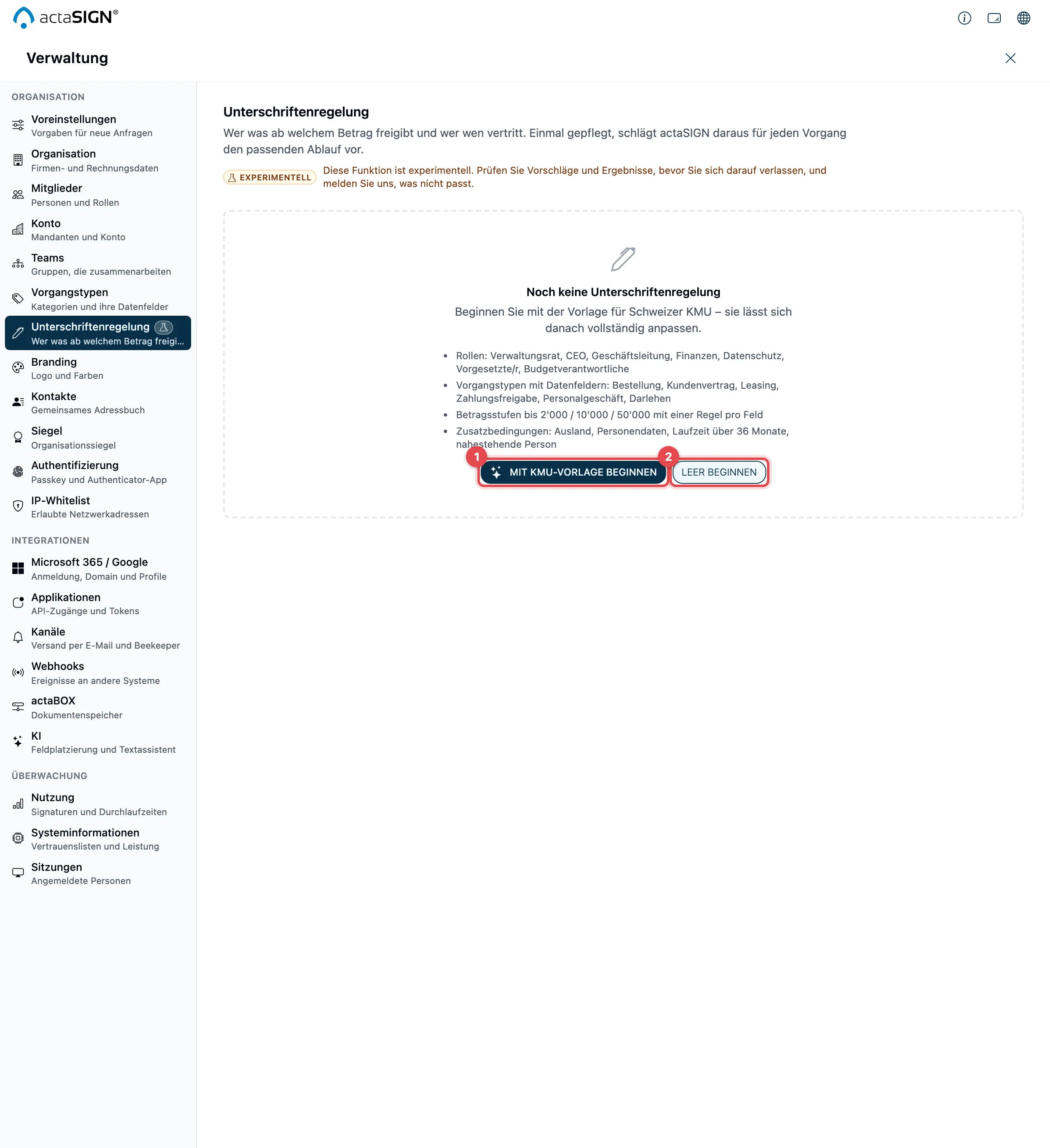
- Start with the SME template: creates a complete draft for Swiss SMEs. It includes the roles (board of directors, CEO, executive board, finance, data protection, superior, budget owner), six request types with data fields (purchase order, customer contract, leasing, payment release, HR matter, loan), the tiers up to 2’000 / 10’000 / 50’000 with a rule in every cell, and four extra conditions. You can adjust all of it afterwards.
- Start empty: creates an empty draft with the tiers 2’000, 10’000 and 50’000, without request types.
Header, check and areas
Section titled “Header, check and areas”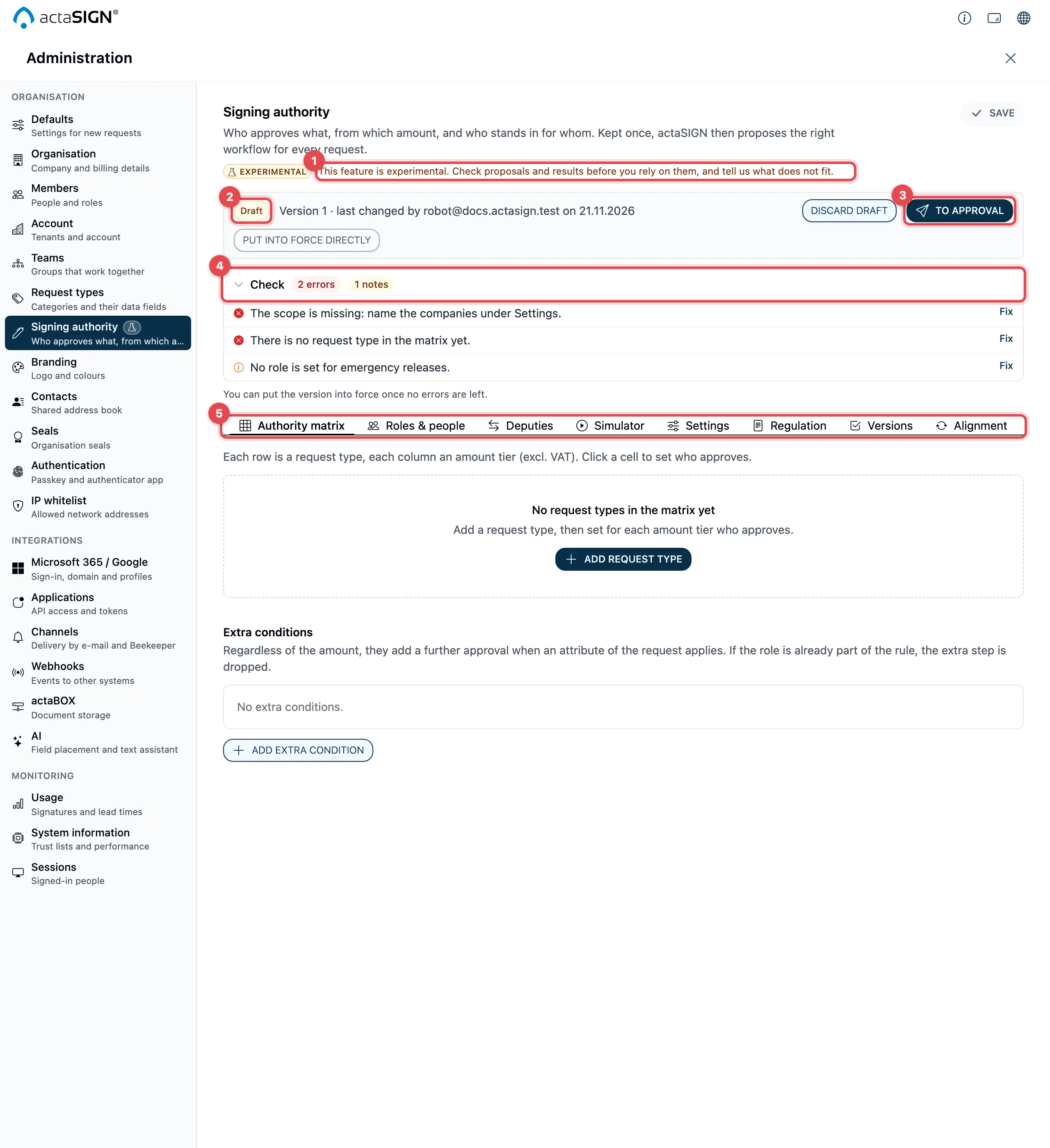
- The Experimental notice is shown above every page of the area.
- The version bar shows the status (Draft, Being signed or In force), the version number and who changed it last. Next to it are Discard draft and, for administrators only, Put into force directly (see Approve signing authority rules). If only a version in force exists and there is no draft, Change is shown here.
- To approval leads to the Versions area.
- Check lists errors and notes, e.g. a role that nobody fills, or an empty cell in the matrix. Fix jumps to the spot. As long as errors are open, the version can neither be sent for approval nor put into force.
- The areas, from left to right:
| Area | What you do there | Instructions |
|---|---|---|
| Authority matrix | Request types, tiers and rules, extra conditions | Set up |
| Roles & people | Fill roles, superiors, commercial register, QES, deputies, cost centres | Set up |
| Deputies | See absences, enter delegations | Set up |
| Simulator | Play through a case, save test cases | Set up |
| Settings | Scope, tiers, deadlines, approving role, currency rates | Set up |
| Regulation | The accompanying text for the rules | Approve |
| Versions | Send for approval, deviations, history, export | Approve |
| Alignment | Microsoft 365, commercial register, ERP data, bank mandates, internal control evidence | Below |
- Matrix, settings and regulation form the version. You save it as a whole with Save at the top right; Discard changes undoes everything since the last save. As long as something is open, Unsaved changes is shown in the version bar.
- Roles, people, cost centres, delegations and currency rates are saved directly in their own window. They apply at once, also to the version that is already in force.
Who may edit the rules
Section titled “Who may edit the rules”Administrators always may. You enter further members, e.g. from finance, at the very bottom of Roles & people. Only administrators see this section.

- In the Search a member … field, search by name or e-mail address and choose the person.
- Click Add. With Remove in the list you take the right away again.
An editor only sees the Signing authority area in Administration. They may edit everything and send the version for approval. Only administrators may:
- Put into force directly,
- add and remove editors,
- Approve or Reject deviations,
- switch Align daily (Microsoft 365) and Take SNB rates daily and save the Company UID.
Keep it up to date
Section titled “Keep it up to date”In the Alignment area, actaSIGN checks every day whether the rules still match the people. It also shows the data sources from your ERP and your bank.
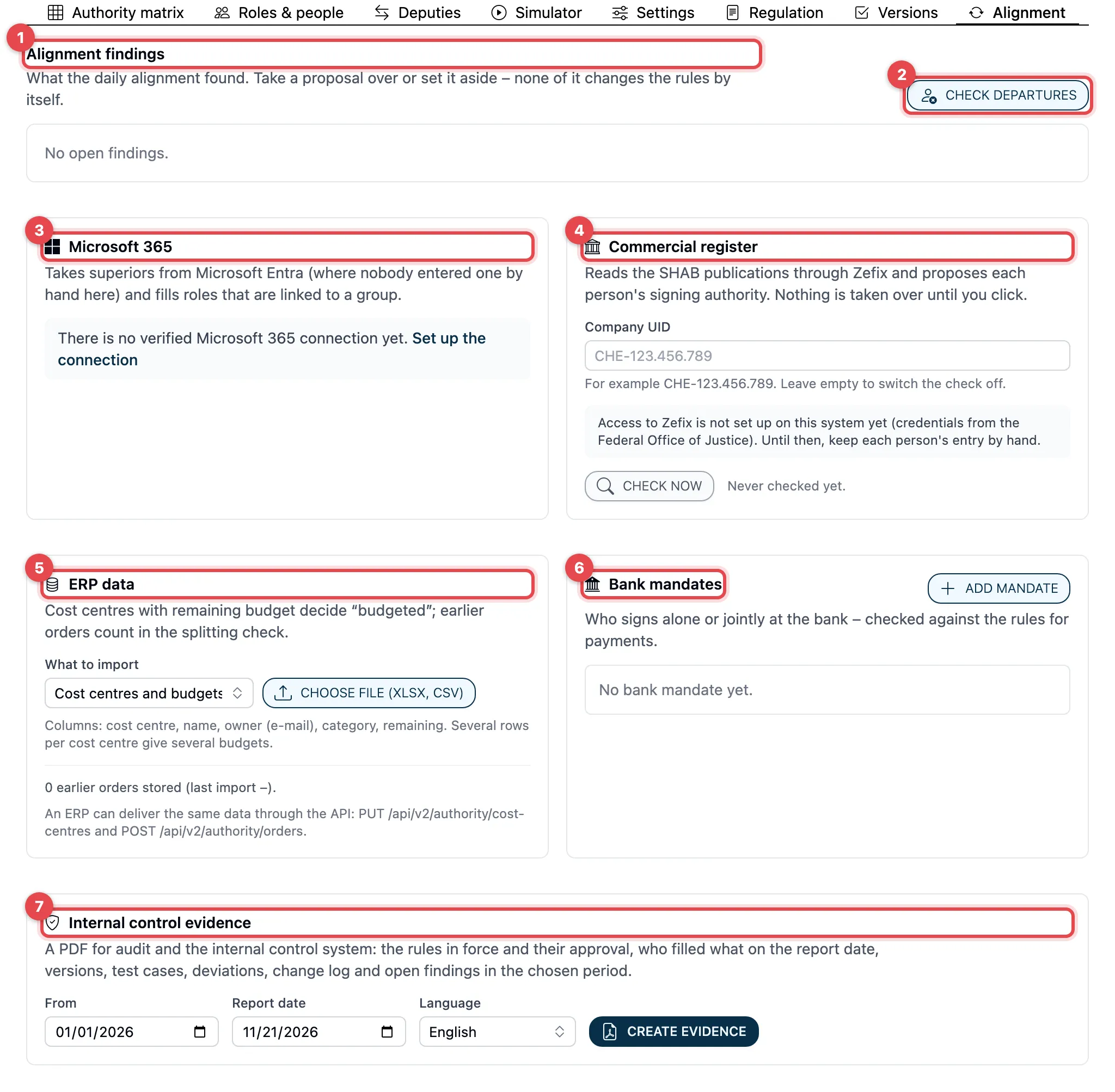
- Alignment findings: what the daily alignment has found. For each finding you take over the proposal (e.g. Remove everywhere, Use Microsoft 365, Take entry over), open the person with Open person or hide the finding with Set aside. Under Settled findings you see what has already been dealt with.
- Check departures: looks at once for people who are blocked, removed or no longer a member, but are still named in a role, as a superior, as a deputy, in a delegation or as a budget owner. Otherwise the alignment does this by itself every day.
- Microsoft 365: takes superiors from Microsoft Entra where nobody has been entered by hand here, and fills roles that are linked to a group. A superior entered by hand is never overwritten; if Microsoft 365 differs, a finding appears. Align daily switches the alignment on, Align now starts it at once.
- Commercial register: Enter the Company UID (e.g. CHE-123.456.789) and click Save. actaSIGN reads the publications in the SOGC via Zefix and proposes the signing authority for each person. Nothing is taken over until you click. Check now reads at once. Without a UID, the check is off.
- ERP data: cost centres, budgets and earlier orders from your ERP (see Extra features).
- Bank mandates: who signs at the bank, checked against the rules (see Extra features).
- Internal control evidence: a PDF for audit and the internal control system. Choose From, Report date and the Language and click Create evidence. It contains the rules in force with their approval, who filled the roles on the report date, versions, test cases, deviations, the change log and open findings.
To fill a role from a Microsoft 365 group: open the role → Fill from a Microsoft 365 group → enter the Group object ID (found in Microsoft Entra under Groups → Overview). The members of the group who are also members of your organization then fill the role.
Extra features
Section titled “Extra features”- AI help: when creating a request, the AI uses Read from document to read the request type, amount and counterparty from the first document. In the Simulator, it answers a question in your own words under Ask the rules. The AI only reads the details; who approves is always decided by the rules. It only proposes values it is unsure about.
- ERP data (in the Alignment area): Upload a file (xlsx or CSV, at most 8 MB) with Cost centres and budgets or Earlier orders. actaSIGN first shows what it has read and which rows have problems; only Import takes the data over. The remaining budget decides whether a request is “budgeted”. Earlier orders count in the check for splitting. An ERP can also deliver the same data via the REST API.
- Bank mandates (in the Alignment area): With Add mandate you enter the bank, the account, the request type for payments and the signatories at the bank (alone or jointly by two). actaSIGN checks them against the rules and reports, for example, when someone signs alone at the bank but the rules require two people.
- Currency rates: actaSIGN converts amounts in a foreign currency into CHF. Under Settings → Currency rates, Take SNB rates daily takes the monthly average of the Swiss National Bank; Fetch now gets it at once. For currencies the SNB does not list, you enter rates with Add rate and Save rates.
- Export and import (in the Versions area): Export as template creates a file that another company of your group takes over as a draft with Import template (roles and request types by name, without people). RULER export (JSON) is for exchange with other systems.
Good to know
Section titled “Good to know”- The rules apply to the organization in which you create them. Each organization has its own.
- Under Members → person → Rights, actaSIGN shows what the rules know about the person (roles, superior, commercial register, QES, deputy), with the link Edit in signing authority.
- Without a version in force, nothing changes for requests: the From the rules tab only appears once a version applies.