

Restrict sign-in to certain networks
With the IP whitelist, the members of your organization may only work from certain networks, for example only from the company network. The list applies in actaSIGN and in actaPASS.
Status and your current address
Section titled “Status and your current address”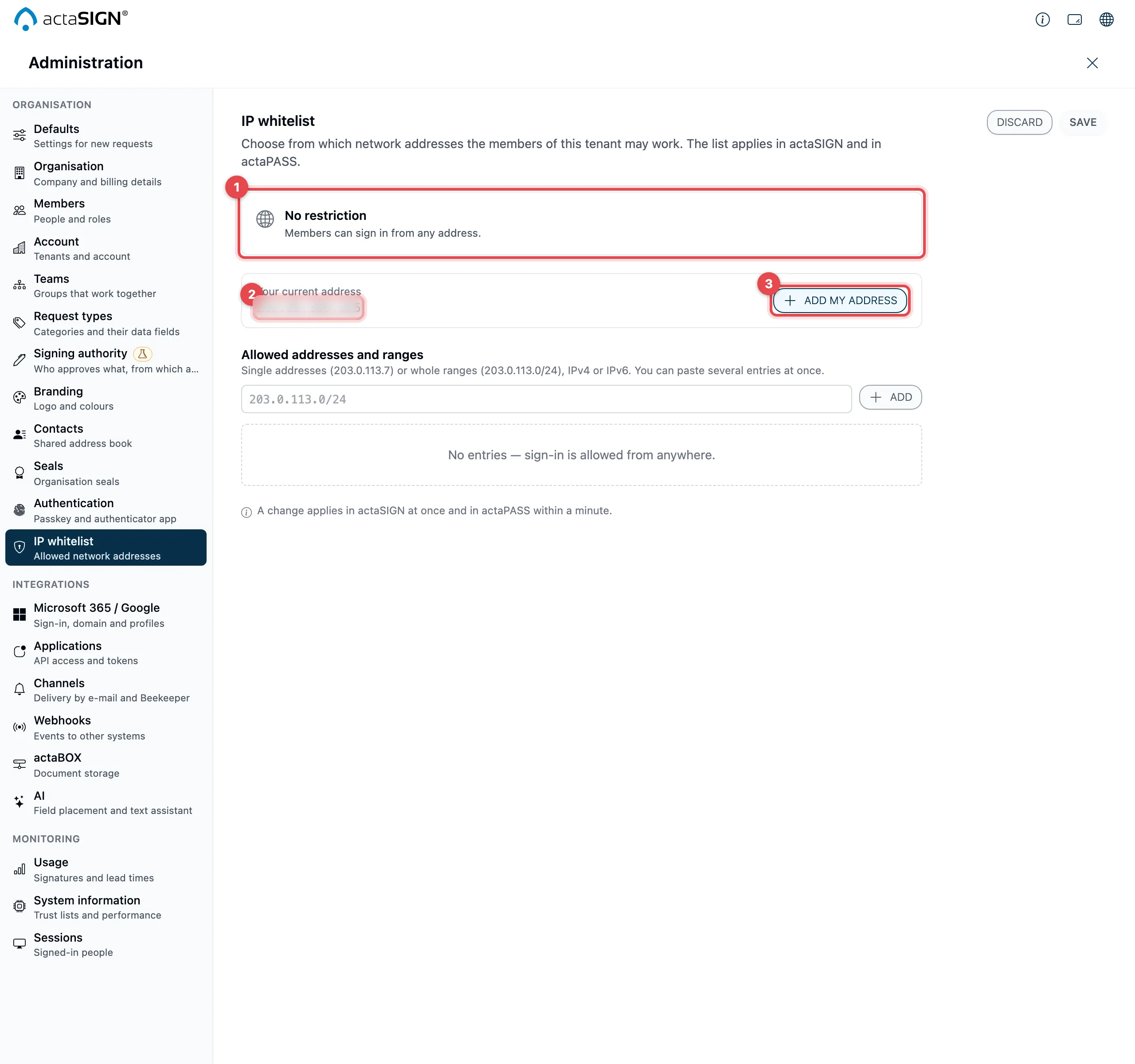
- The status shows what is currently saved:
- No restriction: members can sign in from any address.
- Only from … allowed addresses or ranges: anyone working from another address is signed out.
- Your current address: the address actaSIGN sees you with right now. If the list has entries, it says allowed or not in the list next to it.
- Add my address adds this address to the list.
Your current address is usually the public address of your company network,
not the internal address of your computer (such as 192.168.…).
Enter addresses and ranges
Section titled “Enter addresses and ranges”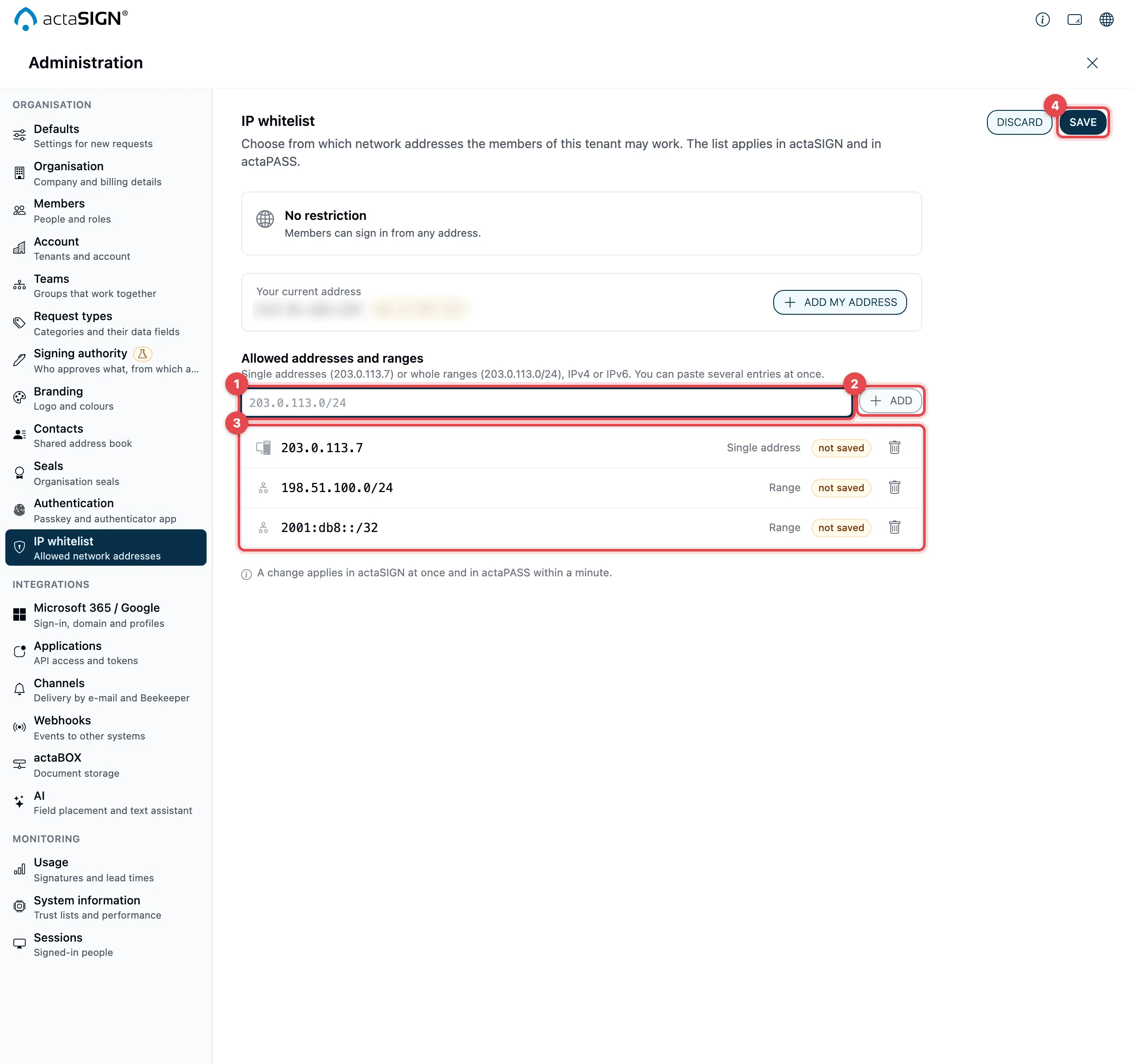
- Under Allowed addresses and ranges, enter a single address, for
example
203.0.113.7, or a whole range, for example203.0.113.0/24. IPv4 and IPv6 are both possible. - Press the Enter key or click Add. To add several entries at once, paste a list (one address per line or separated by commas).
- Each row shows whether it is a Single address or a Range. Your address marks the entry that contains your current address, not saved marks a new entry. Use the bin icon to take an entry out.
- Click Save. Discard brings back the saved list.
actaSIGN checks each entry right away:
- This is not a valid IP address or range.
- This entry is already in the list.
- When you paste a list, actaSIGN adds the valid entries and names the rest: “Not added because invalid: …”.
If the list is empty, you see No entries — sign-in is allowed from anywhere. To lift the restriction, remove all entries and save.
Protection against locking yourself out
Section titled “Protection against locking yourself out”If the list does not contain your current address, actaSIGN does not save it but asks first:
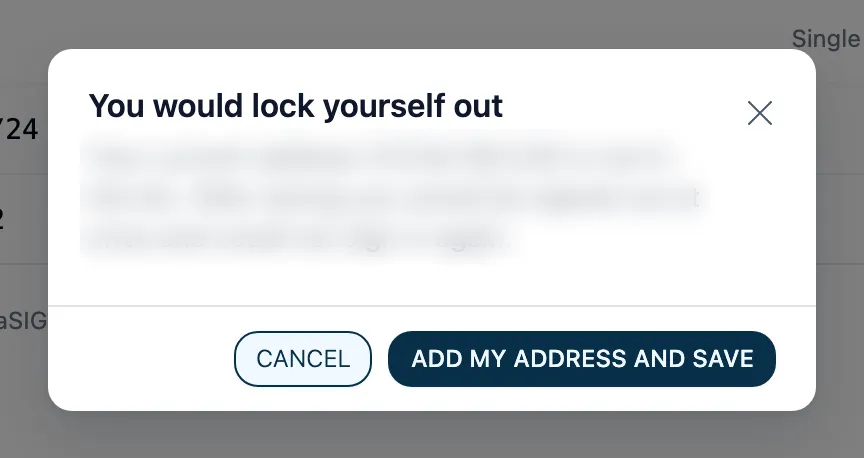
- Add my address and save adds your address to the list and saves.
- Cancel saves nothing. You can keep editing the list.
The server checks this again when saving. So a list without your address cannot be saved in actaSIGN.
If you switch to another section without saving, actaSIGN asks first, just as for the defaults.
Also in actaPASS
Section titled “Also in actaPASS”You can also see and change the same list in actaPASS under Limit access to certain IP addresses.
- In actaSIGN (recommended): only here do you see your current address and are protected from locking yourself out. You can add several addresses at once.
- In actaPASS: this protection is missing there. A list without your address is saved without asking, and you lock yourself out.
Good to know
Section titled “Good to know”- A change applies in actaSIGN at once and in actaPASS within a minute at most.
- The list only applies to members. People who only sign a request are not affected.
- The list may hold at most 500 entries.
- Anyone coming from another address appears in the audit log as “Sign-in blocked by IP policy”. Every save of the list is recorded there too.
- If everyone has been locked out, contact support.