

Enter company and billing details
Under Organisation you store the official details of your company: name, contact, address, who receives service notices and where the invoice goes. axelity needs them for questions, notices about the service and the invoice.
Enter the details
Section titled “Enter the details”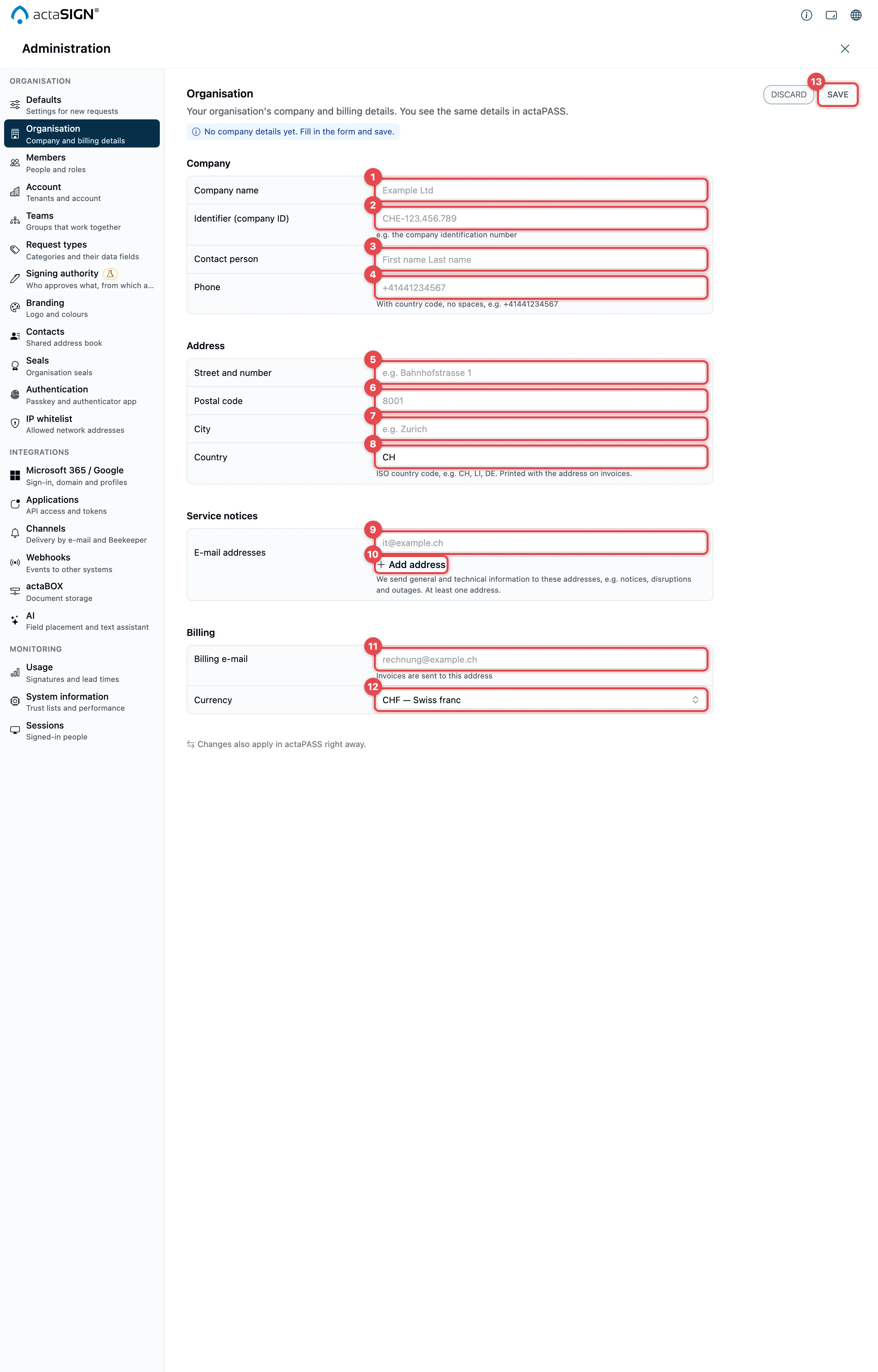
- Company name (group Company): the official name of your company. This field is required.
- Identifier (company ID): for example the Swiss company identification
number (UID), such as
CHE-123.456.789. - Contact person: who is responsible for questions.
- Phone: a number for questions, with country code, for example
+41441234567. - Street and number (group Address), for example “Bahnhofstrasse 1”.
- Postal code, for example
8001. - City, for example “Zurich”.
- Country: the two-letter country code, for example
CH,LIorDE. actaSIGN writes it in capitals. - E-mail addresses (group Service notices): axelity sends general and technical information to these addresses, for example notices, disruptions and outages. At least one address is required, for example that of your IT team.
- With Add address you enter further addresses (up to 20). The wastebasket removes an address again.
- Billing e-mail (group Billing): invoices are sent to this address.
- Currency: Swiss franc, Euro or US dollar.
- Click Save. With Discard you get the saved details back.
If nothing has been entered yet, the top says No company details yet. Fill in the form and save. After saving, it says when and by whom the details were last saved.
If your account is billed through Stripe, the company name, address and Identifier (company ID) appear on the invoices. A change here applies to the next invoices.
Checks while you type
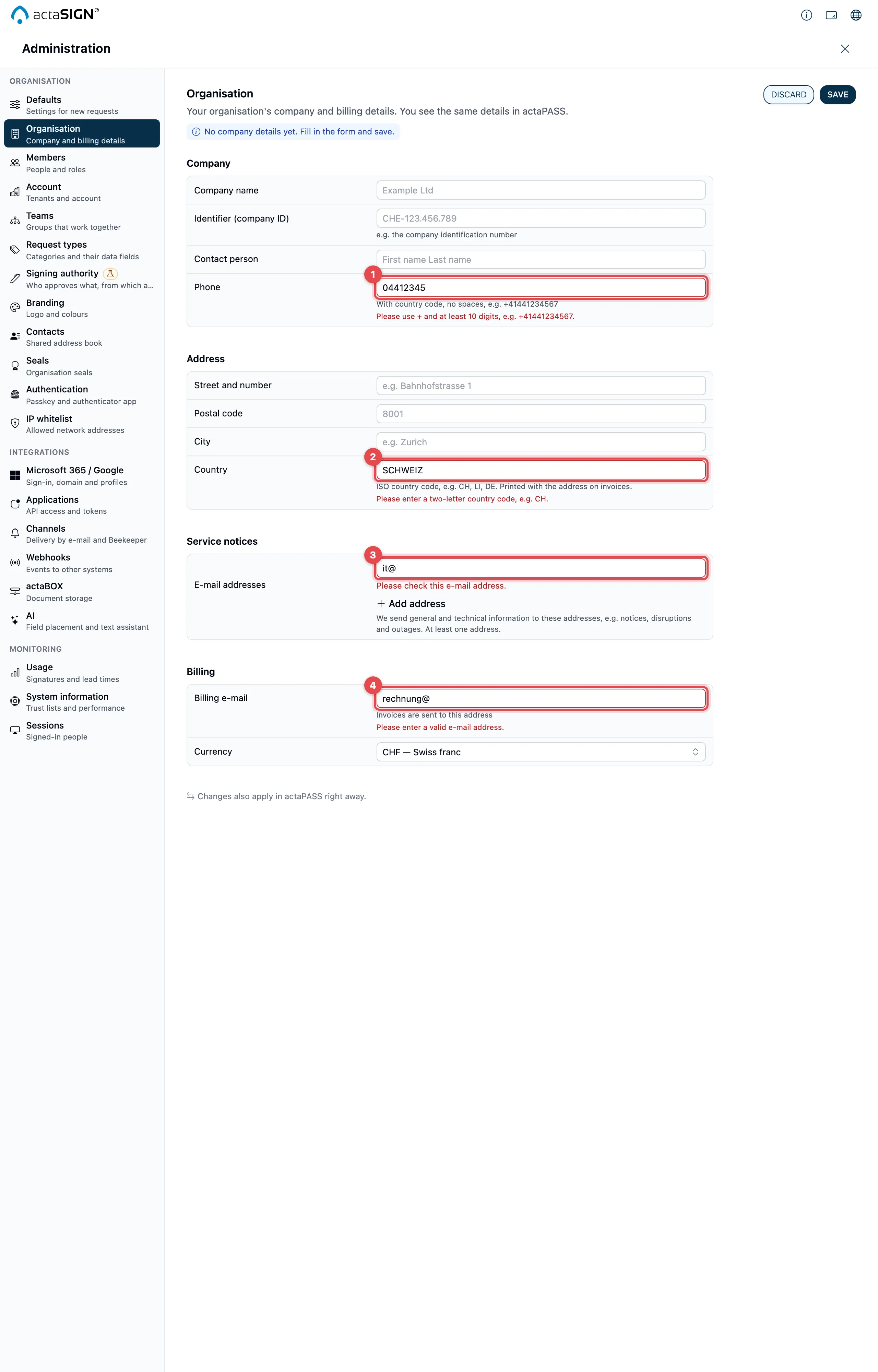
Section titled “Checks while you type”actaSIGN checks the details as soon as you leave a field.
| Field | What actaSIGN checks | What you see |
|---|---|---|
| Company name | It must not be empty. | Please enter the company name. |
| Phone | A + and at least 10 digits. actaSIGN removes spaces by itself. | Please use + and at least 10 digits, e.g. +41441234567. |
| Country | Two letters. | Please enter a two-letter country code, e.g. CH. |
| E-mail addresses | At least one address, and each one is valid. | Please enter at least one e-mail address. or Please check this e-mail address. |
| Billing e-mail | A valid email address. | Please enter a valid e-mail address. |
As long as one of these notes is shown, actaSIGN does not save. Empty lines under E-mail addresses do no harm; they are left out when you save.
Unsaved changes
Section titled “Unsaved changes”If you switch to another area or close the administration without saving, actaSIGN asks:
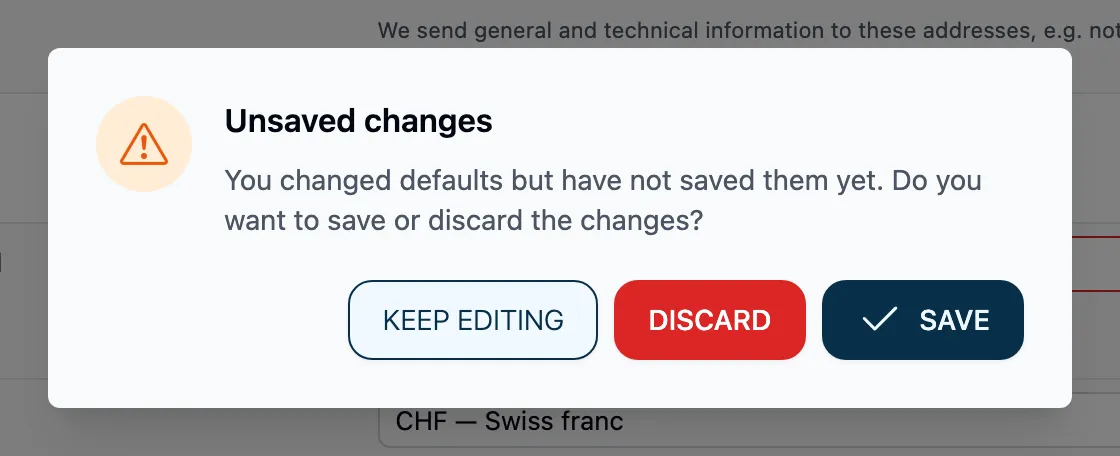
- Save saves and moves on. If a detail is wrong, you stay on the page and see the note next to the field.
- Discard forgets the changes and moves on.
- Keep editing stays on the page.
Also in actaPASS
Section titled “Also in actaPASS”You also see and change the same details in actaPASS under Enter company details. A change applies in both places right away.
- In actaSIGN (recommended for administrators of an organization): here you also have the Identifier (company ID), and the details are checked while you type.
- In actaPASS: if you look after a company account with several tenants and work there anyway.
Good to know
Section titled “Good to know”- actaSIGN no longer records bank, IBAN and BIC / SWIFT; they were not needed.
- The details apply to the organization you are working in right now. If you belong to several organizations, switch the organization first.
- Members do not see these details. However, actaSIGN copies the organization’s name and City into the profile of people you newly invite who do not have an actaPASS account yet.
- The name that members see in actaSIGN is the name of the tenant in actaPASS, not the Company name (Manage tenants).
- Every save is recorded in the audit log, with the names of the changed fields.